
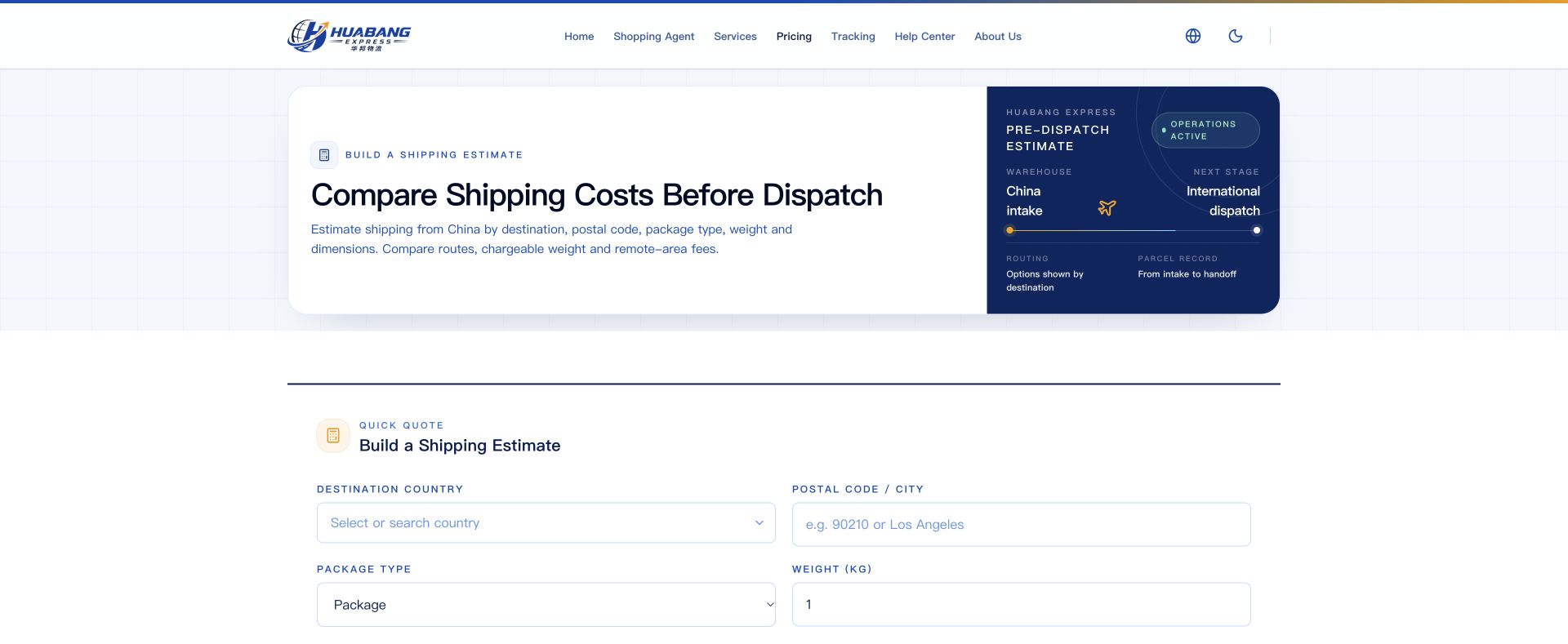
Learn how to estimate international shipping costs, compare shipping channels, check remote area surcharges, and track one or up to 20 parcels on HuaBang Express. Includes illustrated steps and help for common query issues.
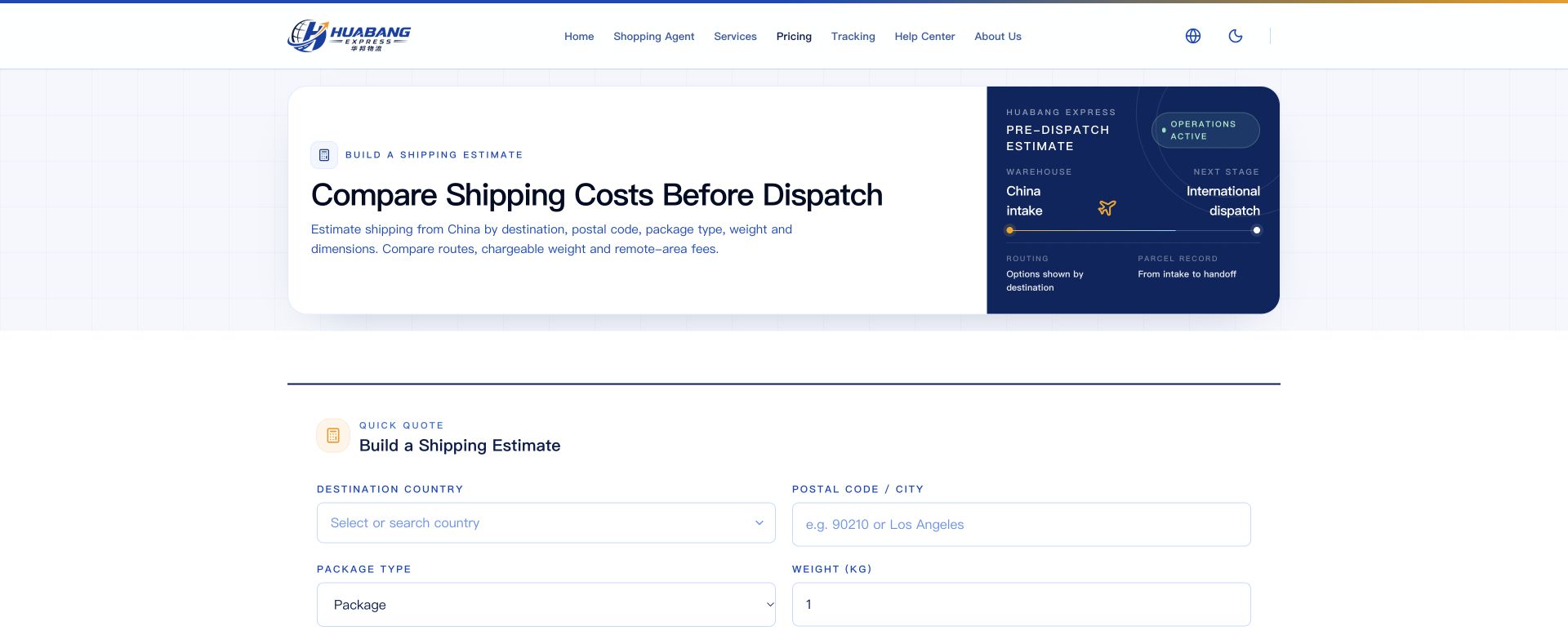
Actual HuaBang pricing screen. Enter your own parcel details and use the current results.
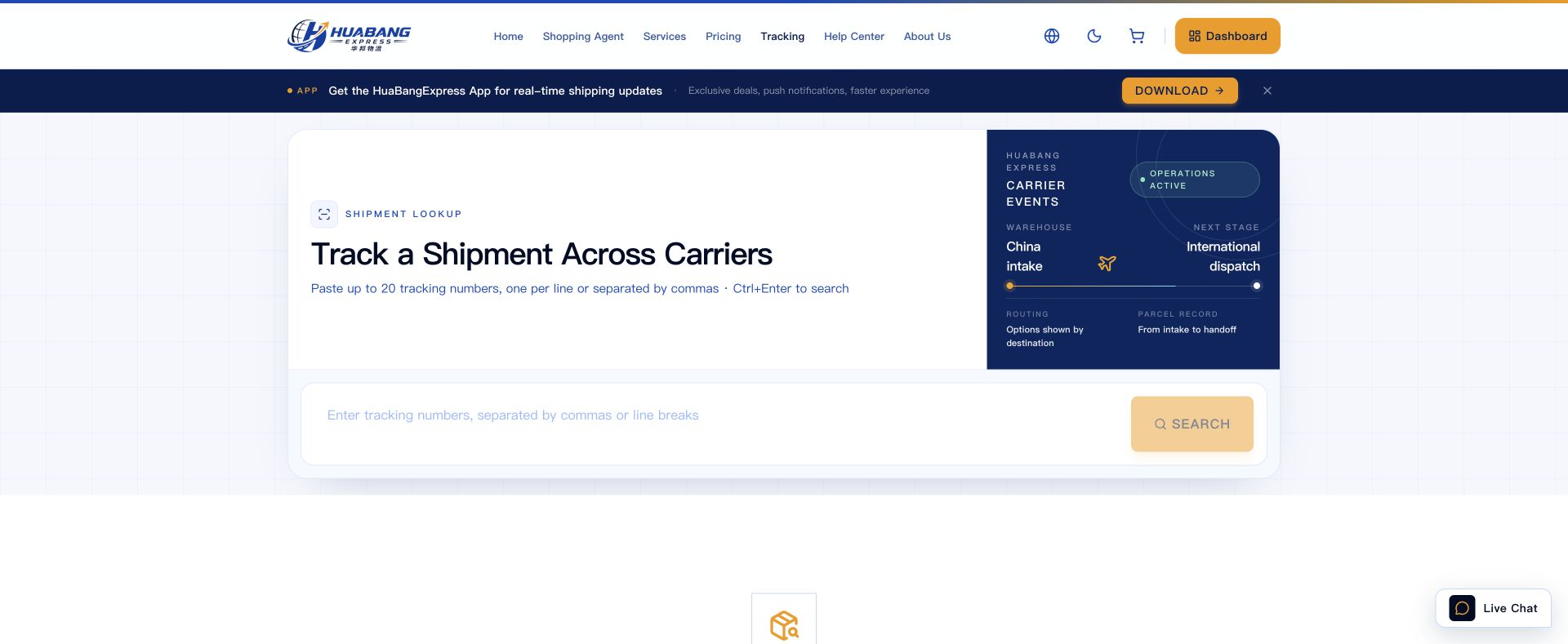
Actual HuaBang tracking screen. Use the tracking number for the relevant shipping stage.
Want to estimate your international shipping costs or find out where your parcel is after dispatch? Use the Pricing and Tracking tools on the HuaBang Express website. Follow the steps below to get started.
- Before shipping: Check shipping rates
- After dispatch: Track your parcel
The screenshots in this guide use sample details to explain how the tools work. The prices, transit times, and remote area results shown are examples only. Use your own parcel details and the current results for your inquiry.
1. How to check international shipping rates
Step 1: Open Pricing
Visit the HuaBang Express website and click Pricing to open the Shipping Calculator.
Step 2: Enter your destination and parcel details
Enter information that matches your actual shipment:
- Destination Country: Select the country where the parcel will be delivered. Do not select China as the destination simply because your parcel is being sent from there.
- Postal Code / City: Enter the postal code or city for the delivery address. Use the exact postal code when you have it, as this helps check whether the destination is in a remote area.
- Package Type: Choose Package, Document, or PAK to match the actual packaging. If you are unsure which type applies, contact customer support first.
- Weight (kg): Enter the parcel weight in kilograms. Do not enter a weight in grams directly into the kilograms field.
- Dimensions (cm): Enter the outer package's length, width, and height in centimeters. The page marks these fields as optional, but we recommend entering the dimensions when known, especially for large, lightweight parcels.
If you plan to consolidate several items: Use the total weight and outer carton dimensions after final packing whenever possible. Product net weights, weights listed on shopping pages, and the sum of several original package dimensions may differ from the final shipment details. You can estimate before packing, then check again once packing is complete.
Step 3: Click Calculate and compare shipping channels
Click Calculate to view the results. Review the Channel, Charge Weight, Amount, Currency, and Delivery Time columns. Charge Weight means the weight used to calculate the shipping charge. Check that the destination, weight, dimensions, and postal code match your intended shipment before comparing channels.
When choosing a channel, consider the goods you are sending and the carrier's acceptance conditions. For items containing batteries, liquids, powders, food, or similar goods, ask customer support to confirm an eligible channel before sending them to the warehouse. Seeing a quote for a channel does not mean that channel accepts every type of item.
Step 4: Click Expand to review the cost details
Click Expand on the right of a channel to view the fee and billing information available for that result. This may include base shipping charges, remote area surcharges, actual weight, volumetric weight, the volumetric divisor, billing notes, and channel notes.
Why can chargeable weight be higher than actual weight? Different channels may use actual weight, volumetric weight, and their own rounding or minimum billing rules. Volumetric weight is typically calculated as the outer carton's length × width × height ÷ the applicable volumetric divisor. Check your selected channel's details for its divisor and final billing method. Do not assume one channel's rules apply to every channel.
Step 5: Use Remote Area Check when needed
After entering the exact destination and Postal Code / City, click Remote Area Check to view the carrier results returned by the page. Results can differ between carriers. Check the result for the channel you plan to use; one carrier's assessment does not apply to every channel.
Before relying on an estimate: Use the results to plan your budget. Check the final charges against the actual packed weight, outer carton dimensions, selected channel's rules, and confirmed bill. Ask customer support about packing service fees, taxes, or any other additional charges that the page does not explicitly list. Read delivery times alongside the channel notes and actual transport conditions. Recalculate whenever you change the destination, postal code, weight, or dimensions.
2. How to track your parcel
Step 1: Find the correct tracking number
Use the tracking number for the stage of transport you want to check:
- From the seller to the warehouse in China: Use the domestic courier tracking number provided by the seller. Check the relevant domestic courier's official tracking service to see whether the shipment has reached the warehouse.
- From HuaBang Express to the overseas destination: Use the tracking number for that international shipment. After signing in to your customer account, you can check your order and related information in Shipping Orders. If you are unsure which tracking number to use, contact customer support.
A HuaBang Express order number, member number, warehouse barcode, and carrier tracking number serve different purposes. Do not use them interchangeably. A domestic courier's delivery confirmation at the warehouse does not mean the international parcel has been dispatched or received by the overseas recipient.
Step 2: Open Tracking and enter the tracking number
Open the Tracking page and paste the complete number into the Tracking Number field. Check that you have not copied extra spaces or explanatory text, or left out any letters or digits.
Step 3: Click Search, or check several parcels at once
- One parcel: Enter one tracking number and click Search.
- Several parcels: Separate the numbers with commas or line breaks. One number per line is recommended. You can check up to 20 tracking numbers at a time.
- Keyboard shortcut: Press Ctrl + Enter to search.
The page lists support for major couriers including DHL, FedEx, UPS, EMS, and Aramex. Whether tracking events are returned also depends on whether the number is correct, the relevant channel is supported, and the carrier has provided records.
Step 4: Read the latest event and its timestamp
When results appear, first check the tracking number. Then read the latest event's time, location, if provided, and status description to understand the shipment's progress. Common messages can be understood as follows:
| Common status | What it means and what to do |
|---|---|
| Information received / Shipment created | The shipment information has usually been registered. Continue checking for an actual pickup or transit scan. |
| Picked up / In transit | Follow the events to check progress. Scan frequency can vary between channels. |
| Customs clearance in progress / Information required | Watch for requests for documents or payment, and contact HuaBang Express customer support promptly to verify what action is needed. |
| Out for delivery / Delivery failed / Address issue | Keep your contact details reachable, check the delivery address, and follow any instructions you receive. |
| Delivered | Check whether the parcel has actually been received. If you have not received it, promptly check whether someone accepted it on your behalf and contact customer support. |
These descriptions are a guide to reading tracking events. Actual status names and meanings can differ by carrier, so always read the details of the specific event.
3. What to do if you have trouble
No shipping rate appears, or no suitable channel is listed
Check the destination, package type, weight, and dimensions. A missing quote does not mean shipping is free or that the parcel definitely cannot be shipped. Send customer support the destination, postal code, item names, whether the goods contain batteries or liquids, estimated weight, and outer carton dimensions so they can confirm a suitable channel.
No records are found for the tracking number
Make sure you are using the number for the correct stage of transport and that you copied it in full. A newly created shipment may not yet have searchable carrier events. The channel may also be unsupported, or the data may not yet have synchronized. If you cannot determine the cause, provide your HuaBang Express order number and tracking number to customer support for checking.
Tracking has not updated for a while
Check the time and description of the last event. Updates may pause during international transfers or while a parcel waits for its next scan. A brief gap in updates does not, by itself, prove that a parcel is lost. If the delay is beyond the expected range confirmed with customer support, or an exception appears, contact support promptly. You do not need to keep creating new orders.
What information should you prepare for customer support?
Use the customer support entry at the bottom right of the website, or the contact details listed on the About Us page.
- For a shipping estimate: Destination country, postal code or city, item names and characteristics, weight, and length, width, and height.
- For a tracking inquiry: Your HuaBang Express order number, the relevant tracking number, and the time and description of the last tracking event. Include a screenshot if needed.
Share delivery addresses, phone numbers, and order details privately with official customer support. Avoid posting them in public comments.
You can now check shipping rates or track your parcel.
Related Articles

Complete Package Forwarding Guide: From China Warehouse Address to Delivery
October 19, 2026

How to Create or Join a Shipping Group on HuaBang Express: Illustrated Guide
October 19, 2026

Common Items Requiring Shipping Review: HuaBang Express FAQ and Checklist
October 19, 2026

How to Return a Warehouse Parcel to a Seller in China: HuaBang Express Illustrated Guide
October 19, 2026